The Touchscreen Has Layers: What Happens Between Tap and Response
How a phone touchscreen turns contact into a response, and what causes taps to feel immediate, delayed or misplaced during everyday use.
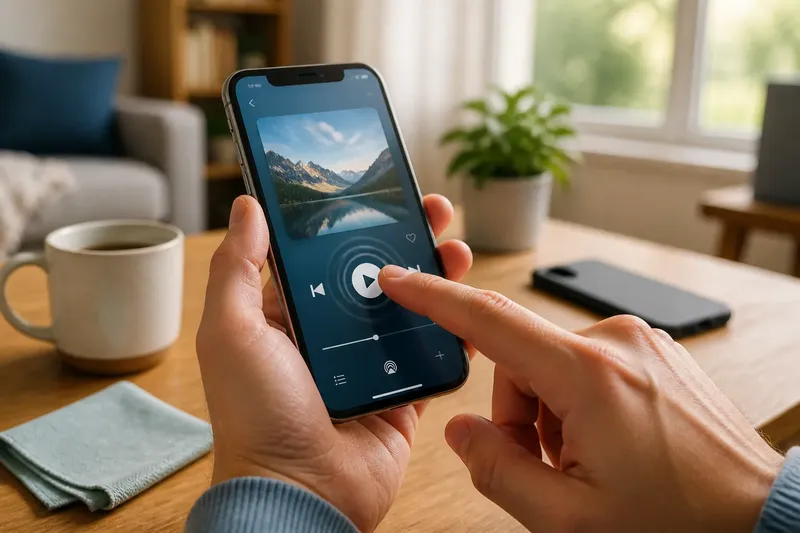
You tap the play icon on your phone, but the music does not start at once. A faint ripple appears, then the screen changes. That small pause is the visible end of a chain: the touchscreen detects contact, software interprets it, and the app responds. Understanding those layers makes odd taps easier to describe and ordinary delays less mysterious.
How does a phone touchscreen detect a tap?
Most phone screens use capacitive sensing. Beneath the glass, a transparent grid detects changes in an electrical field when a conductive object, usually a fingertip, comes close. The screen controller reads that change and estimates where contact occurred.
The controller does not see a finger as a tiny pointer touching a printed button. It receives electrical signals across parts of the grid, then calculates a position from them. A stylus designed for capacitive screens can work because it presents a suitable conductive tip; a wooden pencil usually does not.
This is why a bare fingertip tends to work while a thick glove may not. Some phones offer a setting for glove use, but its availability and behaviour vary. A screen protector can also affect how contact feels, especially if it is poorly fitted, dirty or damaged.
What happens between contact and an app response?
The touch controller passes a position and contact information to the phone’s operating system. The operating system checks which visible element occupies that location and whether the contact counts as a tap, a press, a drag or part of a multi-finger gesture.
That interpretation depends on timing and movement as well as location. A finger that lands on an icon and lifts quickly may register as a tap; one that stays down or moves across the glass may be treated differently. The app then receives an event and decides what action belongs to it.
Think of the process like a letter passing through a building: the screen supplies an address, the operating system sorts it, and the app handles the request. If the address is ambiguous or the recipient is busy, the visible result can be late or unexpected even though the first contact was detected.
Why does a tap sometimes seem to miss?
A tap can miss because the phone assigns it to a neighbouring control, recognises movement instead of a tap, or does not detect the finger clearly. Small icons near the edge of the display can be harder to hit, particularly when the phone is held in one hand and the thumb approaches at an angle.
Moisture, grease, dust and a lifted screen protector can complicate contact. A damaged display may also behave inconsistently. Before assuming the app is at fault, wipe the screen with a soft, dry microfibre cloth, check that a case is not pressing against the display edge, and try the same action in another app.
Say you tap a small close button in a crowded toolbar and the menu stays open. If the button sits beside another icon, the likely explanation may be target size or finger placement rather than a failed screen. Trying again with the phone steady and the fingertip centred can make the result easier to judge.
Why can the screen respond after a pause?
A detected tap still needs processing. The operating system may be busy, the app may be loading content, or the action may require a network response. In those cases, the touch can register promptly while the requested change takes longer to appear.
Feedback helps distinguish a recognised tap from an ignored one. A button may change colour, a switch may move, or a short vibration may confirm contact before the app finishes its work. If no response appears, tapping repeatedly can queue several actions or open the wrong item once the phone catches up.
Notice whether the delay happens across the whole phone or only in one app. If menus and the keyboard respond normally but a particular screen stalls, the app or its connection may be involved. If many areas lag or fail to register touches, restarting the phone and checking for visible damage are reasonable first observations.
How do phones tell a tap from a swipe?
Phones distinguish gestures by tracking a contact over time. A tap usually involves brief contact with little movement; a swipe involves movement across the display while contact continues. Pinching and spreading are interpreted by comparing the changing positions of two fingers.
The exact thresholds are part of the operating system and app design, so a slow, short movement may not behave the same way everywhere. For instance, a photo viewer may treat a finger moving across an image as a swipe, while a drawing app treats similar movement as a line. The app’s purpose shapes how it interprets the same physical motion.
What do readers often ask about touchscreen taps?
Can a screen register a tap without a visible touch?
Sometimes moisture, a damaged display or pressure from an ill-fitting case can cause unwanted input, often called a ghost touch. Remove the case, clean and dry the screen, and see whether the behaviour continues before deciding what to do next.
Does a screen protector make touch less accurate?
A well-fitted protector should allow ordinary contact, but thick, cracked or lifting material can interfere with how a finger meets the glass. Check the phone maker’s guidance and the protector’s fitting instructions if the problem began after installation.
Why does my phone respond to a fingertip but not a glove?
Capacitive screens rely on changes in an electrical field, which many gloves block. A phone may include a touch-sensitivity or glove setting, while some gloves use conductive material at the fingertips.
Can I make taps easier to register?
Use the phone’s accessibility or display settings to look for options such as touch-and-hold timing, touch sensitivity or larger interface elements. Names and availability differ by device, so check the manufacturer’s instructions or local support if a setting is unclear.
What can you check when touch input behaves strangely?
Start with simple observations rather than repeated tapping. Keep track of whether the issue affects one app, one area of the display or the whole interface; that distinction gives you a more useful clue about which layer may be involved.
- Clean and dry the glass with a soft microfibre cloth.
- Check whether a case edge or lifted protector is touching the display.
- Try the same kind of tap in a different app.
- Restart the phone if touch response remains broadly sluggish.
- Look for cracks, discolouration or an area that consistently fails to respond.
If the display is cracked, overheating or behaving unpredictably across multiple apps, avoid pressing harder and seek help from the manufacturer or a qualified repair professional. For ordinary delays, remember that the touchscreen is only the first layer: a tap can be detected correctly while the app still needs time to act. That distinction is often the clearest way to describe what is happening between touchscreen tap and response.