Buttons, Gestures, or Both? Choosing a Navigation Style
Phone navigation gestures or buttons? Compare visibility, screen space and memory, then use a week-long routine to choose controls that feel natural.

You reach the bottom of a message and want to return to the inbox, but your thumb pauses: is there a back arrow, or should you swipe from the edge? Phone navigation gestures or buttons can make that small moment feel either obvious or oddly uncertain. A week of paying attention to those pauses can help you choose a style that fits how you actually use your phone.
The choice is not simply old versus new. Visible buttons offer clear prompts; gestures can leave more room for content and keep the display visually open. Many phones also let you adjust navigation, though the names and available choices vary by device.
What do buttons and gestures ask you to remember?
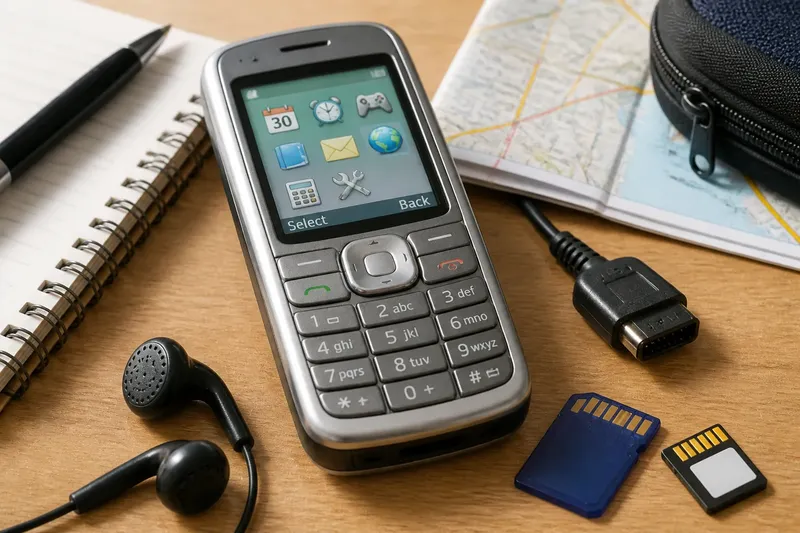
With three-button navigation, familiar symbols usually sit along the bottom of the screen: a control for going back, one for returning home, and one for viewing recent apps. Their position makes the actions visible, and the symbols offer a reminder even when you have not used that particular screen in a while.
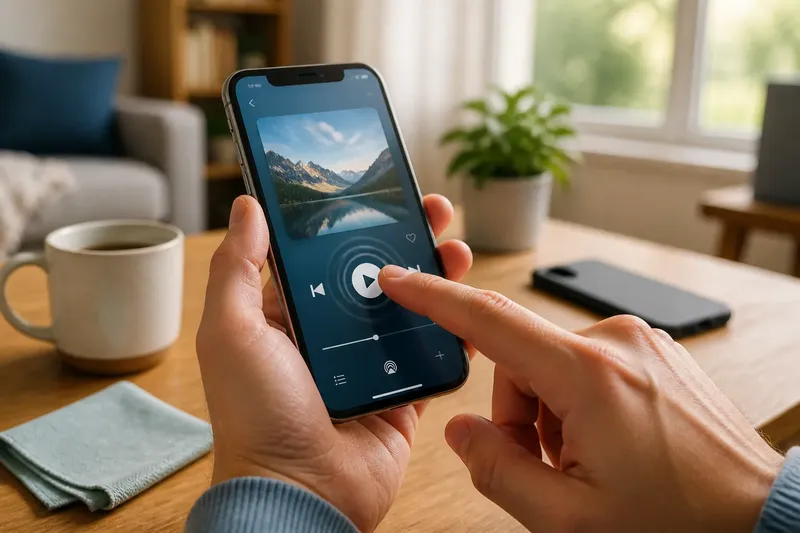
Gesture navigation replaces some or all of those controls with movements. Swiping up from the bottom might return you home; pausing after that swipe may show recent apps; swiping in from a screen edge may go back. The display can feel less crowded, but you have to remember where each movement begins and how far to make it.
Think of the choice like deciding between a labelled light switch and a familiar door handle. The label explains the action to anyone who looks, while the handle takes less visual attention once its use has become habitual. Neither is automatically easier: the right fit depends on whether you value a visible cue or a cleaner, movement-led interface.
When does each navigation style feel easier?
Buttons are often easier to understand at a glance, particularly if you are learning a phone, switching between devices, or helping someone else use yours. They can also be useful when you want a consistent target rather than having to recall a gesture while concentrating on another task.
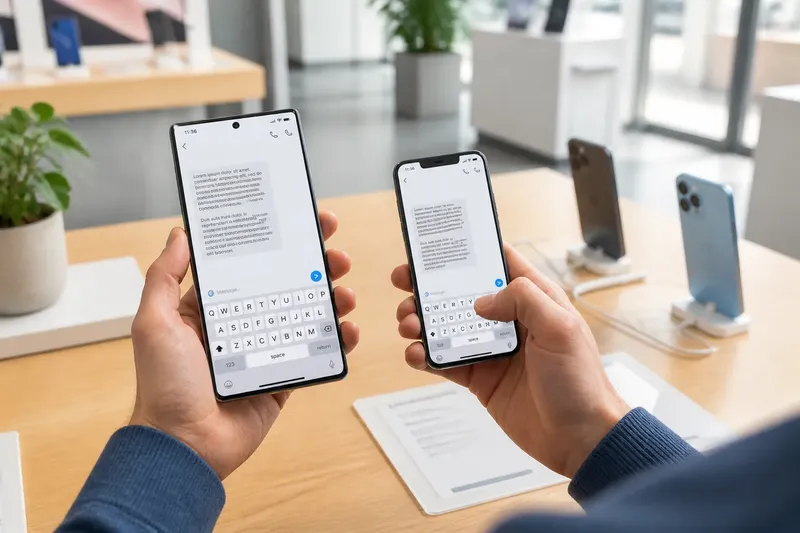
Gestures may suit you if you already use swipes comfortably and prefer the screen to show fewer fixed controls. They can feel natural during one-handed use, but that depends on the phone’s size, the case, your grip and the app. A swipe from the edge can also overlap with an app’s own side panel, so the same movement may not behave identically everywhere.
Screen space is only part of the decision. Buttons occupy a strip of the display, but they also make navigation’s boundaries easy to spot. Gestures can give content more room, yet the space they free is most useful when you do not need a visible prompt to remember what to do.
How can you compare the styles over one week?
Use a short routine rather than changing settings repeatedly whenever a gesture feels unfamiliar. If your phone allows it, try one style for several ordinary days, then switch once and give the other a fair chance. Avoid making a decision from a single hurried moment; the useful clues are recurring pauses, accidental actions and the places where you forget what to do.
- Day one, check your current setup. Find the navigation setting, note which style is active, and look at how your phone labels the alternatives. If you cannot locate the setting, consult the phone’s built-in help rather than guessing at controls.
- Days two and three, notice natural use. Pay attention when leaving an app, returning to the home screen, or switching between recent apps. Record the occasions when you hesitate or make an unintended movement; do not count every successful action.
- Day four, change to the other style. Use the phone normally, including the apps you open often. Give yourself a moment to learn the new movements or symbols, rather than judging the change by the first attempt.
- Days five and six, revisit the same situations. Notice whether the controls are easier to remember, whether a gesture conflicts with an app, and whether the bottom of the display feels clearer or more useful.
- Day seven, choose for your routine. Keep the style that makes common actions feel less effortful. If neither is a clear winner, check whether your phone offers a mixed option or gesture sensitivity controls.
Say you often open a recipe while cooking and need to return to the previous screen with a damp fingertip. Imagine that, during the first part of the week, you repeatedly look for a visible back control; after trying gestures, edge swipes sometimes open the recipe’s side panel instead. The observable result is not a universal verdict about gestures: it is a specific reason to prefer buttons for that routine, or to try a different setting if one is available.
What should you check before settling on a style?
Look at the apps you use, not just the phone’s home screen. Some apps place their own menus or drawers at the screen edge, while others rely on a clear back control. If a gesture keeps competing with an app action you use regularly, that conflict matters more than the general impression that gestures look tidy.
Consider how you hold the phone, too. A case with a raised lip, a narrow grip, or a thumb that does not reach comfortably across the display can change how easy an edge swipe feels. Buttons may be more visible, though their location can also be awkward if you hold the phone in a particular hand or use a large display.
Check for adjustments before ruling out a style. Depending on the phone, settings may let you change gesture sensitivity, switch between navigation modes, or alter which controls appear. Follow the phone maker’s instructions for the model you have, since menu names and options differ.
Which navigation questions come up most often?
Can you switch between buttons and gestures?
Many phones let you change navigation in the system settings, often under display or system controls. The exact route and available modes depend on the manufacturer and software, so use the phone’s help if the setting is not obvious.
Do gestures always give you more usable screen space?
They can reduce the number of fixed controls on screen, but the practical difference depends on the interface and the app. If you benefit from seeing navigation cues, the extra open space may not outweigh the effort of remembering movements.
Why does a back swipe behave differently in some apps?
Some apps assign actions to the edges of the display, such as opening a side menu. The phone’s back gesture may compete with those actions, so try the apps you rely on before deciding that the style works well everywhere.
What if neither style feels comfortable?
Try the other mode for a few ordinary days and look for available adjustments, such as gesture sensitivity or a mixed control option. If discomfort comes from how you hold the phone or from a particular app, changing navigation alone may not resolve it.
How do you make the choice stick?
Once you choose, leave the setting alone long enough to build a habit. Keep the same mode during your usual activities, and if you lend your phone to someone who is unfamiliar with it, point out the basic way to go back and return home. A small explanation can prevent them from treating an unfamiliar swipe as a fault.
Reconsider the setup when your routine changes, such as moving to a phone with a different screen shape or using apps with different edge controls. Phone navigation gestures or buttons are not a permanent identity; they are interface choices. Choose the one that makes your everyday actions easiest to recall, and let visible comfort matter as much as a screen that looks uncluttered.