A New Phone, Your Own Terms: A First-Day Setup Plan
A first-day phone setup plan helps you choose useful alerts, arrange a calmer home screen and transfer only the files and settings you still need.
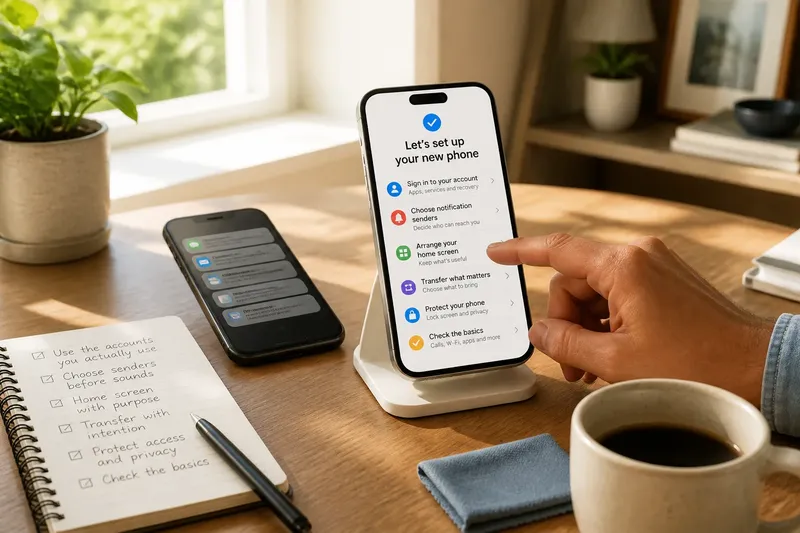
Your new phone is on the table, its screen bright with prompts, while your old one keeps buzzing beside it. A thoughtful first-day phone setup plan lets you decide what deserves attention, what belongs within easy reach and what should come across at all. You do not have to settle every setting before you can enjoy the device.
Work through the choices in a deliberate order, pausing whenever a screen offers a decision you do not yet understand. Names and menus differ between Android phones and iPhones, but the underlying questions are much the same.
1. Start with the accounts you actually use
Sign in to the account you need for app downloads and device services, then check that its recovery details are current. That might mean confirming an email address or adding a recovery method you can reach without the new phone. Avoid creating extra accounts just to get past a prompt if you already have one you use.
Some services offer to restore a previous device’s entire setup. Treat that as an option, not an obligation: a full restore may bring back apps, layout choices and settings you no longer want. If you prefer a clean start, continue with a basic setup and add only the services you recognise and intend to use.
If a screen asks for permissions or account access, read what it is requesting rather than tapping through by habit. For a work or school device, an administrator may require particular settings; check with the relevant support person before changing them.
2. Choose notification senders before notification sounds
During setup, apps may ask permission to send alerts. Start with the sender: would you want this app to interrupt you, or would opening it when convenient be enough? Calls, messages from people you need to reach and time-sensitive travel updates may merit immediate attention. A shopping app’s offers can usually wait inside the app.
Permission can often be adjusted later in the phone’s notification settings, so an uncertain choice need not become permanent. Begin narrowly, then notice which alerts you miss and which ones repeatedly pull you away from something else.
Once you have chosen the senders, consider how each should appear. A banner, lock-screen preview, sound or vibration makes an alert more noticeable; a quiet badge may be enough for information you can check later. If message previews could expose private details on a shared desk or in public, hide their contents on the lock screen while keeping the alert itself.
3. Make the home screen answer one question
Ask what you want the first screen to help you do. If it is mainly for contacting people, put Phone and Messages within easy reach. If you regularly check directions or a calendar, give those apps a clear place rather than filling the screen with every tool you might someday open.
Move apps using the phone’s normal editing controls, and remove shortcuts you do not want from the home screen without deleting the app itself. Keep a small number of familiar choices visible; the app library or app drawer can hold the rest. Like arranging a tray by the kettle, the aim is to make frequent items easy to reach without spreading everything across the counter.
Choose a wallpaper that leaves icons and labels legible, then try the layout for a little while before adding folders or widgets. A weather or calendar widget can be useful if you glance at it often, but it also occupies space and may show information you would rather keep private. You can change the arrangement after ordinary use reveals what feels awkward.
4. Decide what deserves to transfer
Before copying everything, separate what you need from what you merely have. Contacts, recent photographs, calendar entries and selected documents may matter more than old downloads or apps you have not opened in a long time. Check which information already syncs through a service you use, so you do not create needless duplicates.
Say you are moving from an older phone with years of screenshots and several unused games. You could transfer contacts, current calendar entries and the photo albums you still revisit, then install only the games you want on the new device. The observable result should be a phone that opens with familiar essentials rather than a second copy of every old screen and file.
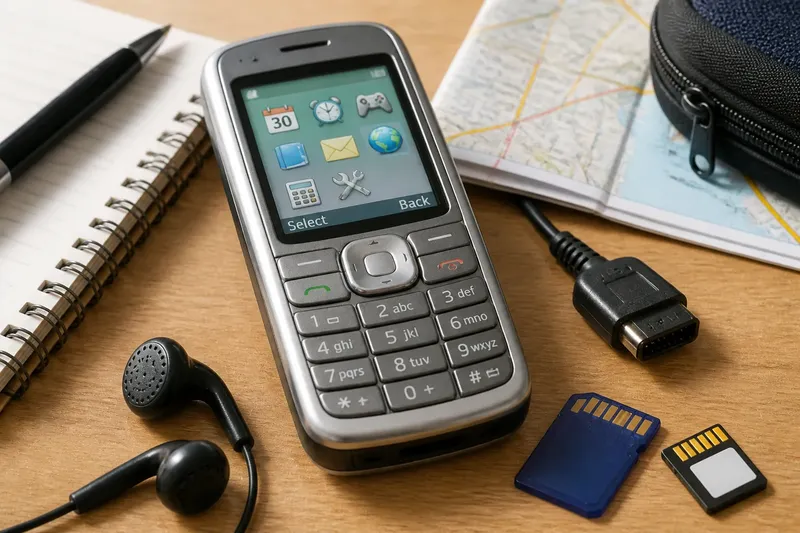
Transfer options may include a cable, a device-to-device tool or a cloud backup. Pick the route that suits the information you need and the connection available, and keep the old phone unchanged until you have checked the new one. If messages, authenticator apps or other account-specific data matter, look for each service’s own transfer or recovery instructions before wiping or trading in the previous device.
5. Protect access without making it a chore
Set a screen lock you can use reliably, such as a passcode or PIN, and consider whether fingerprint or face unlocking suits your comfort and the phone’s options. A lock helps keep casual access at bay, but it cannot replace sound judgement about what appears on a lock screen or which apps can see your information.
Review the privacy prompts as they appear. An app may ask for access to location, contacts, photos or a microphone; allow only what makes sense for the task you want it to perform. If the reason is unclear, deny or defer access and revisit it if a feature you choose to use needs permission.
Keep recovery details somewhere you can reach if the phone is lost or unavailable. The exact choices depend on the service and device, so follow the relevant provider’s instructions where account recovery or device security is concerned.
6. Check the practical basics before you put the old phone away
Make sure you can place a call, connect to your usual Wi-Fi and open the essential apps you selected. Check that contacts and the information you chose to transfer are present, and confirm that messaging works in the way you expect. This is a quick sense-check, not a reason to spend the day configuring every feature.
Look at the sound and display controls that affect ordinary use: ring volume, brightness, text size and whether the phone is set to a mode that silences alerts. If the display feels cramped or icons are difficult to read, adjust the relevant setting rather than forcing yourself to adapt to a default that does not suit you.
Keep the previous phone available until you are comfortable that important accounts and files are accessible on the new one. When you are ready to erase or pass it on, use the device maker’s instructions for preparing it, especially if it contains personal information or is linked to an account.
What should you do if setup raises more questions?
Can you change notification choices later?
Usually, you can revisit an app’s notification permissions and presentation in the phone settings. Start with fewer interruptions, then allow the alerts you find genuinely useful.
Should you transfer every app from your old phone?
No; an app can be installed later if you decide you need it. Bring over the services and information you recognise, and leave forgotten downloads behind until there is a reason to retrieve them.
What if your new phone uses a different platform?
Use the transfer option provided for the move and check which categories it includes before starting. Some app data or account-specific content may need its own sign-in or recovery process.
When is it safe to erase the previous phone?
Wait until you have checked access to important contacts, messages, files and accounts on the new device. Follow the manufacturer’s directions for removing personal data and account links before handing the old phone to someone else.
7. Leave room for the setup to change
A first-day phone setup plan is a starting arrangement, not a contract. After you have used the phone normally, move an app that is hard to find, quiet an alert that adds no value or restore a permission needed for a feature you have chosen.
Make one adjustment at a time, so you can tell whether it helped. By the end of the first day, the useful result is not a perfectly finished screen; it is a phone that gives your attention to the people and tools you chose, while leaving the rest easy to reconsider.